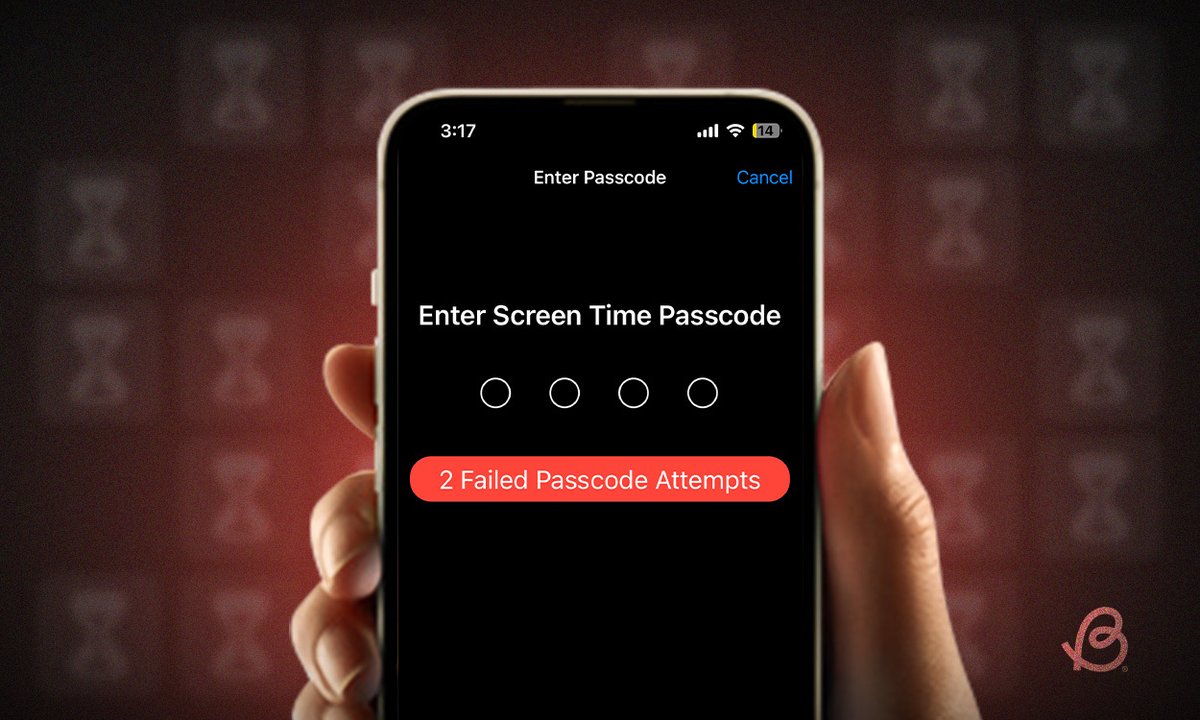
When that "You've reached your limit" notification pops up, and you draw a blank on your Screen Time passcode, it can feel like your digital world has slammed shut. Suddenly, you're locked out of apps, games, or even essential productivity tools, all because of a forgotten sequence of numbers. Don't panic. Dealing with a forgotten Screen Time passcode is a common frustration, but thankfully, Apple provides clear pathways to regain control, provided you know a few crucial details.
This guide will walk you through what to do if you forgot your Screen Time passcode, ensuring you can get back to managing your digital boundaries without resorting to extreme measures.
At a Glance: What to Do If You Forgot Your Screen Time Passcode
- Identify Who Set It: The most critical first step is knowing if you set the passcode with your Apple ID, or if it was set by a family organizer or an organization.
- Reset with Apple ID: If you set it yourself, you can easily reset it using the Apple ID and password originally used to create the passcode.
- Family Organizer Control: If you're a parent managing a child's Screen Time, you can reset their passcode from your own device using your Apple ID.
- Organization-Managed Devices: For school or work devices, you'll need to contact your IT administrator.
- Troubleshooting: Be prepared for potential Apple ID issues or missing "Forgot Passcode" options.
- Backup First: A factory reset is a last resort and will erase your data, so always back up your device.
Why Screen Time Matters (And Why Passcodes Are Essential)
Screen Time isn't just about restricting access; it's a powerful suite of tools designed to help you, or your family, achieve a healthier balance with your devices. From setting downtime schedules and app limits to preventing explicit content and managing communication, it offers granular control over digital interactions.
The passcode, then, is the guardian of these settings. It ensures that app limits aren't casually overridden, that sensitive content filters remain active, and that your carefully crafted digital wellbeing strategy isn't undone with a quick tap. For parents, it's an indispensable tool for protecting children online and fostering responsible device usage. So, while forgetting it is frustrating, its existence serves a vital purpose.
The Crucial First Step: Who Set This Passcode?
Before you dive into any specific steps, you need to answer one fundamental question: Who initially set the Screen Time passcode? Your answer dictates the entire recovery process.
There are three primary scenarios:
- You set the passcode yourself using your own Apple ID on your personal device.
- A family organizer (e.g., a parent) set the passcode for a family member's device (e.g., a child's iPhone) through Family Sharing.
- An organization (e.g., school or workplace) manages your device through Mobile Device Management (MDM).
Let's break down what to do for each situation.
Scenario 1: You Set Your Own Screen Time Passcode (and Have the Apple ID)
This is the most common and straightforward scenario. If you're the one who originally created the Screen Time passcode on your device using your own Apple ID, you can reset it directly through your device's settings. The key is knowing the Apple ID and password that were active when the passcode was first set.
On Your iPhone or iPad: A Step-by-Step Guide
- Open Settings: Tap the grey "Settings" app icon on your Home screen.
- Navigate to Screen Time: Scroll down and tap "Screen Time" (it has an hourglass icon).
- Initiate Passcode Change: Scroll to the bottom of the Screen Time page and tap "Change Screen Time Passcode." You might need to tap this option a second time.
- Tap "Forgot Passcode?": When prompted to enter the old passcode, look for the "Forgot Passcode?" option directly below the passcode entry field. This is your lifeline.
- Enter Apple ID Credentials: A new screen will appear, asking for the Apple ID and password that were used to set up the Screen Time passcode. This is crucial: it must be the Apple ID associated with the initial setup, not necessarily your current primary Apple ID if you've changed it since.
- Create a New Passcode: Once your Apple ID is verified, you'll be prompted to enter a brand-new Screen Time passcode. Choose something memorable, perhaps even different from other passcodes you use.
- Confirm New Passcode: Enter the new passcode again to confirm it.
Congratulations! Your Screen Time passcode has been successfully reset, and you can now adjust your limits as needed. This process is fairly intuitive, designed to get you back in control quickly. If you're looking for more general advice on managing this feature, you might find our guide on how to change Screen Time passcode useful, even when you haven't forgotten it.
On Your Mac: A Step-by-Step Guide
The process on a Mac is very similar, just with slightly different navigation.
- Open System Settings (macOS Ventura or later) or System Preferences (macOS Monterey or earlier):
- macOS Ventura or later: Click the Apple menu () in the top-left corner of your screen, then select "System Settings."
- macOS Monterey or earlier: Click the Apple menu (), then select "System Preferences."
- Go to Screen Time:
- macOS Ventura or later: Click "Screen Time" in the sidebar.
- macOS Monterey or earlier: Click the "Screen Time" icon.
- Access Options/Change Passcode:
- If you see "Options" in the top-right corner, click it. Then look for "Change Passcode."
- Alternatively, you might see "Change Passcode" directly on the main Screen Time pane.
- Click "Forgot Passcode...": Similar to iOS, you'll see this option when prompted to enter the old passcode.
- Enter Apple ID and Password: Provide the Apple ID and password that were used to establish the Screen Time passcode on this Mac.
- Set and Confirm New Passcode: Choose and confirm your new, easy-to-remember Screen Time passcode.
The Apple ID Connection: Your Key to Recovery
The Apple ID is the lynchpin of Screen Time passcode recovery. Apple's security protocols dictate that to reset the passcode, you must prove ownership of the account that initially set it. This prevents unauthorized users from circumventing Screen Time limits.
- Crucial Point: It's not necessarily your current Apple ID if you've changed it since setting up Screen Time. It's the one that was associated with the device and Screen Time at the time of setup.
- What if I don't remember the Apple ID? If you've forgotten the specific Apple ID used, or its password, you'll need to recover that Apple ID first. Visit Apple's iForgot page (iforgot.apple.com) to initiate Apple ID or password recovery. Only once you have access to that Apple ID can you proceed with the Screen Time passcode reset.
Scenario 2: You're a Family Organizer Resetting a Child's Passcode
Apple's Family Sharing makes it easy to manage devices for children and other family members. If you're the designated "Family Organizer" and your child has forgotten their Screen Time passcode (or you, as the parent, forgot the passcode you set for them), you can reset it directly from your own device. Your child will not be able to reset it from their device if it's managed by Family Sharing.
How to Reset a Child's Screen Time Passcode from Your Device:
- Open Settings on Your Organizer Device: Go to the "Settings" app on your iPhone or iPad.
- Tap "Screen Time": Select "Screen Time" from the main Settings menu.
- Choose the Child's Name: Under the "Family" section, tap on the name of the child for whom you want to reset the passcode.
- Tap "Change Screen Time Passcode": Scroll down and tap this option.
- Tap "Forgot Passcode?": You'll see this option when prompted for the old passcode.
- Enter Your Apple ID Credentials: Here's the difference: you'll enter your Apple ID and password (the Family Organizer's Apple ID), not the child's. This confirms your authority to make changes.
- Set a New Passcode: You'll then be able to set a new Screen Time passcode for your child's device.
- Confirm New Passcode: Enter the new passcode a second time.
Now, the child's device will use this new passcode. Make sure to share it with them if appropriate, or keep it in a secure place yourself.
Scenario 3: Your Device is Managed by an Organization (School or Work)
If your iPhone, iPad, or Mac was issued to you by a school, university, or workplace, it's very likely managed by an organizational system called Mobile Device Management (MDM).
In an MDM environment, many settings, including Screen Time passcodes, are controlled by the organization's IT department. Individual users typically don't have the permissions to override or reset these settings.
What to Do:
- Contact Your IT Administrator: The only course of action in this scenario is to reach out to your school's IT support or your company's IT department.
- Explain the Situation: Inform them that you've forgotten the Screen Time passcode and need assistance. They will have the tools and authority to reset it for you or provide specific instructions based on their organization's policies.
- Do Not Attempt Personal Resets: Trying the methods described in Scenarios 1 or 2 will likely fail and could potentially cause further issues if the device is under strict MDM control.
Troubleshooting Common Hurdles: When Things Don't Go as Planned
Sometimes, the straightforward paths above encounter bumps. Here are solutions to common problems you might face:
1. The "Forgot Passcode" Option Is Missing
If you don't see the "Forgot Passcode?" option where it should be, it's usually a strong indicator that your device's Screen Time is not managed by your personal Apple ID.
- Check Family Sharing: Your device might be part of a Family Sharing group, and another family member (the organizer) is controlling Screen Time. In this case, refer to Scenario 2 and have the family organizer reset the passcode from their device.
- Organization-Managed Device: The device could be managed by a school or workplace (MDM). In this situation, refer to Scenario 3 and contact your IT administrator.
- Outdated iOS/macOS: While less common for this specific issue, ensuring your device is running the latest software can sometimes resolve unexpected interface discrepancies.
2. Your Apple ID Credentials Aren't Working
You're sure it's your Apple ID, but the system won't accept the password.
- Double-Check Apple ID: Are you absolutely certain it's the correct Apple ID associated with the initial Screen Time setup? Many people have multiple Apple IDs or use different ones for various services.
- Check for Typos: A simple typo in your Apple ID email or password can prevent access.
- Verify Apple ID Status: Visit iforgot.apple.com to confirm your Apple ID is active and not locked. You can also reset your Apple ID password there if needed. Remember, resetting your Apple ID password might require a 24-hour waiting period before it can be used for Screen Time recovery.
- Internet Connection: Ensure your device has a stable internet connection. Apple needs to verify your credentials with its servers.
3. You Recently Changed Your Apple ID Password
If you've just updated your Apple ID password, there might be a slight delay before the new password can be used for Screen Time passcode recovery.
- Wait 24 Hours: Apple sometimes implements a security waiting period, typically up to 24 hours, after an Apple ID password change. If you've recently updated it, try again after this period.
4. Your Device's iOS/macOS is Outdated
Older versions of iOS or macOS might not have the same Screen Time recovery features or could exhibit bugs.
- Update Your Software: Before attempting more drastic measures, ensure your iPhone, iPad, or Mac is running the latest compatible version of its operating system. Go to
Settings > General > Software Updateon iOS/iPadOS, orSystem Settings/Preferences > General > Software Updateon macOS.
5. The Last Resort: Factory Reset (with Severe Warnings)
If all other methods fail, and you desperately need to remove the Screen Time passcode, a factory reset of your device will erase everything, including the passcode. This is an extreme measure and should only be considered after exhausting all other options.
- Backup Your Device FIRST: Before initiating a factory reset, you must create a full backup of your device to iCloud or your computer. A factory reset will wipe all your data, apps, photos, and settings. Without a backup, you will lose everything.
- How to Factory Reset:
- On iPhone/iPad: Go to
Settings > General > Transfer or Reset iPhone/iPad > Erase All Content and Settings. - On Mac: The process varies by macOS version and Mac model (Intel vs. Apple Silicon). Generally, you'll need to erase your startup disk in macOS Recovery. This is a more complex process and should be approached with caution or with professional help.
- Restore from Backup: After the factory reset, you can set up your device as new and then restore your data from your backup. However, if your backup was made after the Screen Time passcode was forgotten and embedded in the backup itself (which is rare but theoretically possible if the backup somehow preserved the passcode state in a specific way), it might reappear. Generally, a clean restore from a backup created before the passcode issue, or setting up as new, should work.
6. When to Call In the Experts: Apple Support
If you've meticulously followed all the steps, tried the troubleshooting tips, and still can't regain access, it's time to contact Apple Support.
- Provide Details: Be prepared to explain your situation clearly, including what steps you've already taken.
- Proof of Ownership: Apple Support will often require proof of purchase or other forms of ownership verification for your device and Apple ID to assist with security-related issues.
Beyond the Reset: Preventing Future Passcode Woes
Forgetting a passcode is frustrating, but it's also a learning opportunity. Here are some tips to prevent this headache from recurring:
- Choose a Memorable Passcode: Don't pick something overly complex that you'll forget. A simple pattern or a number sequence that's easy for you to recall but hard for others to guess is ideal.
- Use a Password Manager: For those with many passcodes and passwords, a reputable password manager (like 1Password, LastPass, or Dashlane) can securely store your Screen Time passcode. You'll only need to remember one master password.
- Write It Down (Securely): If you're old-school, write it down in a physical planner or notebook that you keep in a secure, private location. Avoid digital notes apps unless they are highly encrypted.
- Review Your Settings Periodically: Every few months, take a moment to review your Screen Time settings and confirm your passcode. This reinforces memory.
- Involve Your Family: If you're a family organizer, ensure there's a clear understanding of the Screen Time passcode within the family, especially with your co-parent.
Empowering Your Digital Wellbeing
Forgetting your Screen Time passcode is a common hiccup in the journey of digital wellbeing. The good news is that Apple has built in robust recovery options, largely centered around the Apple ID used for setup. By understanding who initially set the passcode and having access to the associated Apple ID, you can almost always regain control without undue stress.
Remember, Screen Time is a tool to help you or your family foster healthier digital habits, not to create barriers. With these steps, you're now equipped to manage your devices effectively, ensuring technology serves you, rather than the other way around.