Troubleshooting Common Screen Time Passcode Issues That Aren't Resetting
You're stuck. Your child's iPhone is locked down, or perhaps you're trying to adjust your own digital diet, but that pesky Screen Time passcode is blocking the way. Worse, the usual "Forgot Passcode" option seems to have vanished, or it's simply not working. You’re not trying to set a new passcode; you’re trying to troubleshoot why you can’t get past the old one, or why the system isn’t letting you reset it. This isn't just frustrating; it's a common stumbling block for many Apple users navigating the crucial features of Screen Time on iOS 18/17/16, iPadOS, and macOS.
This guide isn't about the simple, straightforward reset. It's for when the system throws you a curveball – when you can't remember the passcode, the recovery options are missing, or something just feels broken. We're diving deep into why these common Screen Time passcode issues occur and, more importantly, how to fix them, even if it feels like your device is actively conspiring against you.
At a Glance: What You'll Learn
- Understanding the "Why": Discover the common reasons your Screen Time passcode isn't behaving, from forgotten Apple IDs to system quirks.
- Quick Fixes First: Simple troubleshooting steps that often resolve minor glitches.
- Mastering Apple's Official Paths: Step-by-step instructions for resetting or disabling Screen Time passcodes on personal and child devices, including crucial details about Apple ID recovery.
- When Official Isn't Enough: Exploring third-party software solutions that can bypass Screen Time passcodes without data loss.
- The Last Resort: How a factory reset can clear all passcodes, along with its significant trade-offs.
- Preventing Future Headaches: Best practices for managing your Screen Time settings moving forward.
The Screen Time Passcode Labyrinth: Why It's So Crucial
At its heart, Screen Time is a powerful suite of features on your iPhone, iPad, iPod Touch, or Mac. It’s designed to give you (or your family organizer) granular control over device usage. Think of it as your digital well-being manager, allowing you to:
- Monitor Usage: See exactly how much time you (or others) spend on apps, websites, and categories.
- Set Limits: Create daily time limits for specific apps or app categories.
- Schedule Downtime: Enforce periods where only pre-approved apps and phone calls are allowed.
- Restrict Purchases: Prevent accidental (or intentional) in-app purchases and content downloads.
- Manage Content & Privacy: Implement robust restrictions, especially vital for children's accounts, controlling web content, explicit language, and privacy settings.
To protect these settings from being easily bypassed – especially by tech-savvy kids – Apple introduced the Screen Time Passcode, a four-digit code. It's a second layer of security, distinct from your device's main passcode, and when it goes rogue, it locks you out of managing these essential digital boundaries.
Why Your Screen Time Passcode is Playing Hard to Get
Before we dive into solutions, understanding the root cause can save you a lot of grief. It’s not always user error; sometimes, the system itself can be a bit tricky. Here are the most common culprits behind Screen Time passcode woes:
- You Simply Forgot It (and Didn't Set Up Recovery): This is the most common scenario. When you initially set up Screen Time, Apple provides an option to link an Apple ID for recovery if you forget the passcode. If you skipped this step, the "Forgot Passcode" option might not appear, or it won't work as expected.
- Apple ID Mismatch or Forgetfulness: Even if you linked an Apple ID, you might not remember which Apple ID you used, or you've forgotten that Apple ID's password. This is especially tricky if you have multiple Apple IDs.
- Family Sharing Complexities: If you're managing Screen Time for a child, the passcode is set and controlled by the family organizer. Issues can arise if the organizer's device isn't properly authenticated or if there's a disconnect in the Family Sharing setup.
- Outdated Software: Older versions of iOS, iPadOS, or macOS can sometimes harbor bugs that interfere with Screen Time functionality, including passcode changes. Keeping your device updated is a basic but often overlooked step.
- System Bugs or Glitches: Technology isn't perfect. A minor software bug, a corrupted setting, or a temporary system hiccup can cause the passcode function to falter.
- Too Many Failed Attempts: Just like your device passcode, too many incorrect Screen Time passcode entries will lock you out for increasingly longer periods (e.g., 60 minutes after 10 failed tries, an hour after 11+). This isn't a fixable problem directly, but it compounds the frustration.
First Aid for Frustration: Initial Troubleshooting Steps
Sometimes, the simplest solutions are the most effective. Before you dive into more complex methods, give these basic troubleshooting steps a shot. They often clear minor system glitches that might be preventing your passcode from working correctly.
- Give Your Device a Hard Reset: This is the classic "turn it off and on again" approach, but a forced restart can clear temporary memory issues and refresh system processes.
- For iPhone 8 or later (and some iPads): Quickly press and release Volume Up, then Volume Down, then press and hold the Side/Power button until you see the Apple logo.
- For iPhone 7/7 Plus: Press and hold the Volume Down and Sleep/Wake buttons simultaneously until you see the Apple logo.
- For iPhone 6s or earlier (and some iPads): Press and hold both the Home and Sleep/Wake buttons until you see the Apple logo.
After the restart, try accessing or changing your Screen Time passcode again.
- Sign Out and Back In to Your Apple ID: Your Apple ID is deeply integrated with Screen Time, especially for recovery options. A quick sign-out and sign-in can sometimes re-establish a stable connection and resolve authentication issues.
- On iPhone/iPad: Go to Settings > [Your Name]. Scroll down and tap "Sign Out." You'll be asked to enter your Apple ID password to confirm. Once signed out, restart your device, then go back to Settings > Sign in to your iPhone and sign back in.
- On Mac (macOS Ventura or later): Go to the Apple menu > System Settings > Click your name. Scroll down and click "Sign Out." Then sign back in.
- Update Your Device's Software: As mentioned earlier, outdated software can be a source of bugs. Apple frequently releases updates that patch these issues. Ensure your device is running the latest version of its operating system.
- On iPhone/iPad: Go to Settings > General > Software Update. If an update is available, download and install it.
- On Mac: Go to the Apple menu > System Settings > General > Software Update.
After updating, test your Screen Time passcode functionality again. This can often resolve mysterious issues that simply fade away with a fresh OS build. You might find more detailed instructions on how to update your iPhone or iPad's operating system in our dedicated guide.
- Check the Organizer's Device (for Family Sharing): If the problem is with a child's device managed through Family Sharing, the primary troubleshooting should always start with the family organizer's device. Ensure their iPhone or iPad is updated and functioning correctly, as they hold the keys to the kingdom.
Decoding the Apple Way: Official Methods When All Else Fails (or Seems To)
When the quick fixes don't cut it, it's time to follow Apple's prescribed paths. These methods are designed to work, provided you have the necessary information – chiefly, your Apple ID.
For Your Own Device (Personal iPhone/iPad)
If you're trying to adjust Screen Time settings on your own device and are running into a passcode barrier:
- Navigate to Screen Time Settings: Go to Settings > Screen Time.
- Initiate a Passcode Change: Tap "Change Screen Time Passcode," then tap "Change Screen Time Passcode" again.
- The "Forgot Passcode" Lifeline: This is the crucial step. If you've forgotten your current passcode, tap "Forgot Passcode?" at the bottom.
- Apple ID Authentication: Here's the catch: you'll be prompted to enter the Apple ID and password you used when you originally set up Screen Time. This is often the point of failure if that Apple ID is forgotten or if one wasn't linked during setup. If successful, you can then set a new Screen Time passcode.
- What if "Forgot Passcode?" isn't appearing? This usually means you didn't link an Apple ID for recovery during the initial Screen Time setup. In this scenario, your options are limited to trying third-party tools or a factory reset.
- A Niche Trick for Missing "Forgot Passcode": Some users have reported success by turning off "Share Across Devices" (Settings > Screen Time > Share Across Devices) on the device having issues, then trying to reset the passcode on another Apple device (e.g., an iPad or Mac) logged in with the same Apple ID. Once the passcode is reset on the secondary device, turn "Share Across Devices" back on. This isn't guaranteed, but it's worth a shot if you have another Apple device.
For a broader overview of how these changes are supposed to work, you can always refer to our guide on how to change your Screen Time passcode.
For a Child's Device (Managed via Family Sharing from Organizer's Device)
This process must be initiated from the family organizer's (parent's) iPhone, iPad, or Mac, not the child's device.
- Ensure Organizer's Device is Updated: Double-check that the family organizer's device is running the latest iOS/iPadOS/macOS version.
- Access Screen Time Settings on Organizer's Device:
- On iPhone/iPad: Go to Settings > Screen Time.
- On Mac (macOS Catalina 10.15.4 or later): Go to Apple menu > System Settings > Screen Time.
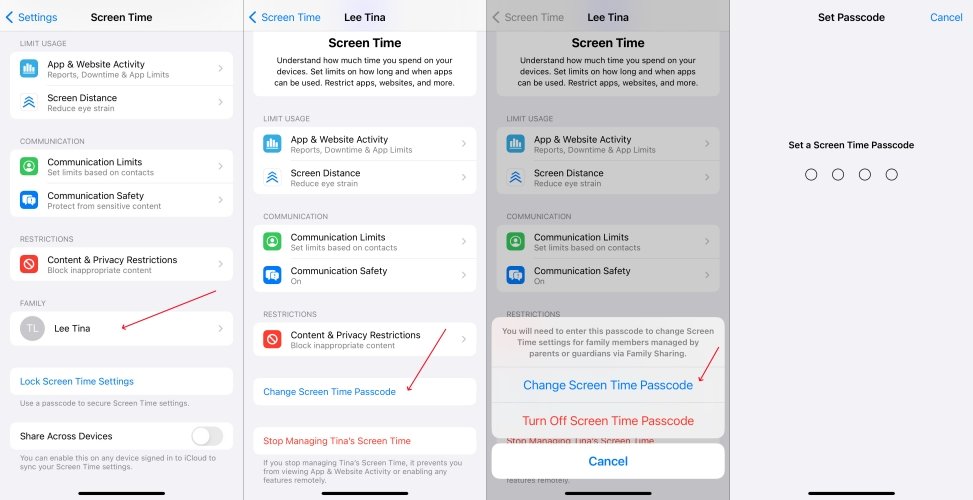
- Select the Child's Name: Scroll down and tap/click the child's name under the "Family" section.
- Change Passcode:
- On iPhone/iPad: Tap "Change Screen Time Passcode," then "Change Screen Time Passcode" again. You might be asked to authenticate with Face ID, Touch ID, or your device's passcode (the organizer's device passcode, not the Screen Time passcode). Then, enter the new Screen Time passcode and confirm it.
- On Mac: Click the three dots (...) button in the bottom left corner, then click "Change Passcode." Click "Forgot Passcode." Enter the Apple ID and password used to set up Screen Time for the child. Then, enter and confirm the new Screen Time passcode.
This method relies on the family organizer's device authentication, effectively bypassing the need for the child's previous Screen Time passcode. This is a critical distinction that often gets overlooked. For more information on setting up and managing children's devices, consult Apple's Family Sharing guide.
Disabling a Child's Screen Time Passcode (as Family Organizer)
If you, as the family organizer, want to completely remove the Screen Time passcode for a child (perhaps to set a new one or rethink your approach), here's how:
- Access Child's Screen Time Settings: On your (organizer's) device, go to Settings > Screen Time > [Child's Name].
- Turn Off Passcode: Tap "Change Screen Time Passcode," then select "Turn Off Screen Time Passcode" (you might need to tap it twice).
- Authenticate with Organizer's Security: You'll be prompted to authenticate using your Face ID, Touch ID, or your device's primary passcode. This confirms that the request is coming from the authorized family organizer.
- Confirm Deactivation: Once authenticated, the Screen Time passcode for that child will be removed. You can then choose to turn off all Screen Time features for the child on that same page by tapping "Turn Off Screen Time," which doesn't require a passcode. This is particularly useful if you're experiencing issues with Screen Time's content and privacy restrictions and need to reconfigure them.
The Nuclear Option (with a Catch): Factory Reset via iTunes
If all official Apple methods fail, and you absolutely cannot remember the Screen Time passcode, a factory reset will eliminate it. However, this comes with a significant caveat: it will erase all data and settings on your iPhone or iPad. This means you'll essentially get a brand-new device, free of any previous passcodes.
Crucial Warning: Only proceed with this method if you have absolutely no other recourse and are prepared for data loss, or have a recent backup you can restore from.
Before You Start:
- Backup, Backup, Backup: Seriously, create a fresh backup of your device to iCloud or your computer. While a factory reset removes the Screen Time passcode, restoring from an iCloud or iTunes backup can sometimes bring the passcode back if the backup was created after the passcode was set. The best practice is to factory reset, then set up as new, and then manually re-download apps and data, or carefully restore from a backup before the Screen Time passcode was ever set. For more on this, understand how to back up your device before a factory reset.
- Update Everything: Ensure your iPhone/iPad and your computer's iTunes/Finder are running the latest software.
- Disable "Find My": You'll need to turn off "Find My iPhone" or "Find My iPad" before you can restore. Go to Settings > [Your Name] > Find My > Find My iPhone/iPad and toggle it off. You’ll need your Apple ID password for this. If you can't access settings due to Screen Time, you might need to do this via iCloud.com or proceed with recovery mode (see below). For more on managing this, you can refer to our guide on turn off Find My iPhone.
Steps to Factory Reset:
- Connect to Computer: Open iTunes (on PC or older Macs) or Finder (on macOS Catalina or newer) on your computer. Connect your iPhone or iPad using a USB cable.
- Enter Recovery Mode: If your device isn't recognized or you can't disable Find My, you'll need to put it into Recovery Mode. The steps vary by model:
- iPhone 8 or later (and some iPads): Quickly press and release Volume Up, then Volume Down, then press and hold the Side/Power button until you see the recovery mode screen (computer icon).
- iPhone 7/7 Plus: Press and hold the Volume Down and Sleep/Wake buttons simultaneously until you see the recovery mode screen.
- iPhone 6s or earlier (and some iPads): Press and hold both the Home and Sleep/Wake buttons until you see the recovery mode screen.
- Restore Your Device: Once your device is in Recovery Mode and connected to your computer, iTunes/Finder will prompt you with an option to "Restore" or "Update." Choose "Restore."
- Confirm & Wait: Confirm the action. Your computer will download the latest iOS/iPadOS software and restore your device. This process will wipe everything, including the Screen Time passcode.
- Set Up as New: After the restore, your device will restart to the "Hello" screen. Set it up as a new iPhone/iPad to ensure the Screen Time passcode is completely gone. During the setup process, when prompted for Screen Time, choose "Set up Later in Settings" or "Don't Transfer Apps and Data" to prevent any old Screen Time settings from being re-applied.
Beyond Apple's Walls: Third-Party Solutions
For many users, the official methods are either too complex, require a forgotten Apple ID, or involve losing precious data. This is where specialized third-party software comes into play. These tools are designed to bypass or remove the Screen Time passcode without requiring the old passcode or even your Apple ID, and crucially, often without data loss.
How They Generally Work (Example Software: Tenorshare 4uKey, SD iPhone Passcode Unlocker):
- Download and Install: Obtain the software on your PC or Mac.
- Connect Your Device: Plug your iPhone or iPad into your computer using a USB cable. You'll likely need to unlock your device and tap "Trust" when prompted.
- Select "Remove Screen Time Passcode" Module: Most tools will have a specific function for this.
- Disable "Find My iPhone" (if prompted): The software may instruct you to turn off "Find My iPhone" before proceeding.
- Start the Process: Click "Start Remove" or a similar button. The software will then work its magic, which may involve your device restarting.
- Post-Removal Setup: After the process, your device will restart. During the initial setup, it's vital to select "Don't Transfer Apps and Data" and, when you reach the Screen Time section, choose "Set Up Later in Settings" to ensure the old passcode isn't inadvertently restored.
- Set a New Passcode: Once your device is ready, you can go into Settings > Screen Time and set a completely new passcode.
Benefits of Third-Party Tools:
- No Data Loss: This is the primary advantage over a factory reset.
- No Old Passcode Required: You don't need to remember the forgotten Screen Time passcode.
- No Apple ID Needed for Recovery: Bypasses the Apple ID authentication hurdle.
- User-Friendly Interface: Designed to simplify a complex process.
Preventing Future Lockouts: Best Practices
Once you've successfully wrestled your Screen Time passcode into submission, take a moment to implement these best practices to avoid future headaches:
- Choose a Memorable Passcode: It sounds obvious, but pick a 4-digit code that's easy for you to remember but hard for others (especially children) to guess. Avoid birthdates or simple sequences.
- Link an Apple ID for Recovery (Always!): When you initially set up or change your Screen Time passcode, always provide an Apple ID for recovery. This is your primary safety net. If you skipped it before, make sure to set it up now.
- Record Your Passcode (Securely): While not ideal for security purists, if you struggle with memory, jot down your Screen Time passcode and store it in a secure location (e.g., a password manager, a locked note, or even a physical note in a secure place, separate from your device).
- Regularly Review Settings: Periodically check your Screen Time settings and ensure they're still configured as you intend. This can help you catch potential issues early.
- Keep Your Devices Updated: As emphasized earlier, regular software updates from Apple often contain bug fixes that can prevent Screen Time issues from arising in the first place.
Final Thoughts: Reclaiming Your Digital Control
Troubleshooting Screen Time passcode issues can be a deeply frustrating experience, especially when it feels like your own device is locking you out of vital controls. But as we've explored, there are clear, actionable paths forward, from simple restarts to official Apple recovery methods, and even robust third-party solutions.
The key takeaway is persistence and understanding the underlying causes. By systematically working through these steps, you can regain control over your (or your family's) digital habits and ensure Screen Time works for you, not against you. Remember, a little prevention goes a long way, so once you're back in the driver's seat, take those extra steps to secure your settings for the long haul.