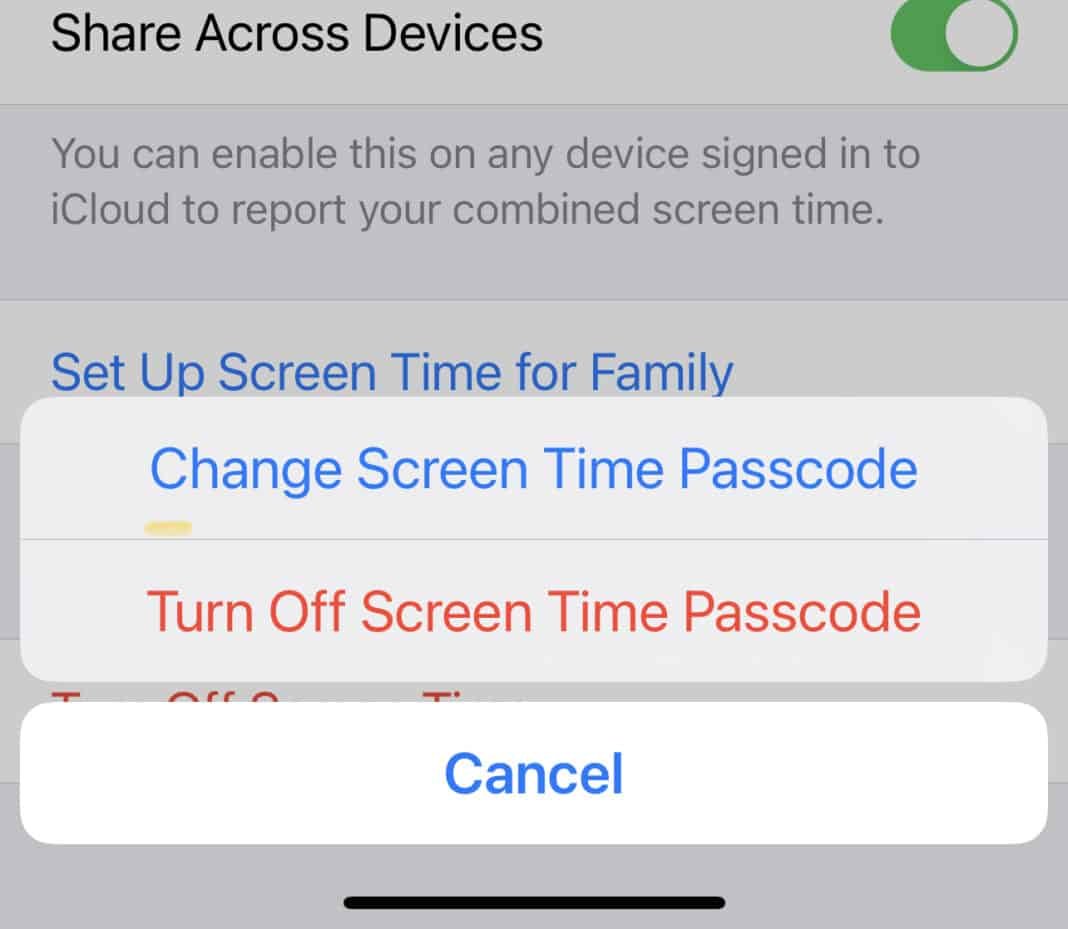
Ever found yourself staring at your iPhone, completely locked out of a setting by a forgotten Screen Time passcode? It’s a frustratingly common scenario. Perhaps you set it up months ago for yourself, inherited a device, or are trying to help a family member whose child has outsmarted their own memory. Whatever the reason, needing to know how to turn off or disable your Screen Time passcode without actually knowing the code is a real pain.
The good news? It's not a lost cause. While Apple prioritizes security, they also provide pathways to regain control, even when the specific passcode slips your mind. This guide will walk you through the most useful, trustworthy methods to disable Screen Time, helping you unlock your device's full functionality once more.
At a Glance: Your Options for Disabling Screen Time
Before diving into the specifics, here's a quick overview of the paths you can take:
- Apple ID Recovery: The official, no-data-loss method if you linked your Apple ID during Screen Time setup (iOS 13.4+).
- iCloud Logout: A surprisingly effective trick for iOS 14 and newer, which can disable Screen Time without a passcode or data loss.
- Third-Party Unlocker Tools: Specialized software that can remove the passcode from your computer, usually without data loss but often with a cost.
- Factory Reset: A drastic measure that erases all data but definitely removes Screen Time (requires a backup!).
- iTunes Restore: Similar to a factory reset, this method uses a computer to wipe and restore your device, removing Screen Time but losing all data unless backed up.
Each method has its own requirements, benefits, and potential drawbacks. We'll explore them all so you can choose the best path for your situation.
Why You Might Need to Break Free from Screen Time's Grip
Screen Time is an incredibly useful feature, designed to help you (or your kids) monitor and limit device usage. It encompasses powerful controls like:
- Downtime: Restricting device use to "Always Allowed" apps and phone calls during specified hours.
- App Limits: Setting time caps for specific app categories or individual applications.
- Communication Limits: Controlling who can be contacted via Phone, FaceTime, and Messages.
- Content & Privacy Restrictions: Managing everything from iTunes & App Store purchases to explicit content, privacy settings, and even iCloud account changes.
These restrictions are fantastic when you’re in control. But when the passcode is lost, they transform from helpful guardrails into an impenetrable fortress. You might need to disable it because: - You forgot your own passcode. It happens to the best of us!
- You've inherited or purchased a used device with Screen Time already enabled and password-protected.
- You need to bypass restrictions for troubleshooting or a specific, time-sensitive task.
- You're a parent who forgot the passcode set for a child's device, or you're giving them more freedom.
Let's explore how to get that control back.
Method 1: The Official Apple ID Recovery Route (No Data Loss)
This is hands-down the cleanest and most recommended method if you meet the requirements. Apple introduced the ability to recover your Screen Time passcode using your Apple ID, much like recovering your main device passcode.
Requirements and Compatibility
- iOS 13.4 or newer: This feature was added in iOS 13.4. If your device is older, this method won't be available.
- Apple ID and Password: You must have associated an Apple ID with your Screen Time passcode during its initial setup. If you skipped this step or if the "Forgot Passcode?" option isn't visible, this method won't work.
- Internet Connection: Your device will need to connect to Apple's servers to verify your Apple ID.
Step-by-Step Guide: Resetting with Your Apple ID
- Open Settings: Tap the Settings app on your iPhone or iPad.
- Navigate to Screen Time: Scroll down and tap Screen Time.
- Initiate Passcode Change:
- If Screen Time is currently ON, tap Change Screen Time Passcode.
- If you're looking to turn it off entirely, you might see "Turn Off Screen Time Passcode" instead. Tap that.
- Tap "Forgot Passcode?": Below the area where you'd normally enter the passcode, you'll see a small, usually blue, link that says Forgot Passcode?. Tap this.
- Enter Apple ID Credentials: A prompt will appear asking for your Apple ID and password. Enter the credentials for the Apple ID that was used to set up Screen Time initially.
- Reset or Turn Off:
- If verification is successful, you'll be prompted to enter a new Screen Time Passcode. You can set a new one or simply tap "Cancel" if your goal was just to view the existing passcode (though Apple won't show it directly, this process lets you bypass the need for the old one).
- Alternatively, if you chose "Turn Off Screen Time Passcode" in step 3, completing the Apple ID verification will disable Screen Time entirely.
This method is ideal because it leaves all your data and settings intact. It's Apple's designed solution for forgotten passcodes and should always be your first attempt.
Method 2: Logging Out of iCloud (iOS 14+ Specific, No Data Loss)
Here's a clever workaround that some users have found effective, particularly on newer iOS versions. Screen Time settings are often linked to your iCloud account, and logging out can sometimes disrupt this link, allowing you to disable the feature.
Why This Works
On iOS 14 and later, Screen Time settings, especially for family members, are deeply integrated with iCloud. Temporarily signing out of your iCloud account can occasionally disassociate the Screen Time passcode requirement, essentially "resetting" its local enforcement.
The Logout Process
- Open Settings: Go to your device's Settings app.
- Tap Your Apple ID Banner: At the very top of the Settings menu, tap on your name/picture (your Apple ID banner).
- Sign Out: Scroll to the bottom of this screen and tap Sign Out.
- Follow Prompts: You may be asked if you want to keep copies of certain data (like Contacts, Calendars, Safari Data) on your device. Choose what you prefer. You might also need to enter your Apple ID password to confirm the logout.
- Restart Device (Optional but Recommended): After logging out, a quick restart can help refresh system processes.
- Attempt to Disable Screen Time: Once logged out, go back to Settings > Screen Time. You might now find that you can tap Turn Off Screen Time without being prompted for a passcode.
- Sign Back In: After successfully disabling Screen Time, you can sign back into your iCloud account by tapping the "Sign in to your iPhone" banner at the top of the Settings app.
This method is less guaranteed than the Apple ID recovery, but it’s worth a shot because it's non-destructive and relatively quick.
Method 3: When All Else Fails - Third-Party Unlocker Tools (No Data Loss, Often Paid)
If the Apple ID recovery method isn't an option for your iOS version or setup, and the iCloud logout trick doesn't work, specialized third-party software can come to the rescue. These tools are designed to bypass or remove various iOS passcodes, including Screen Time.
What Are These Tools?
These are desktop applications (for PC or Mac) that connect to your iPhone or iPad via USB. They leverage software exploits or specific processes to interact with your device's firmware and remove the Screen Time passcode without erasing your data. Examples include SD iPhone Unlocker, AnyUnlock, and PhoneRescue for iOS.
How They Generally Work
While the exact steps vary slightly by software, the general process looks like this:
- Download and Install: Find a reputable third-party unlocker tool online and install it on your computer. Be cautious and research reviews to avoid scams or malware.
- Connect Your Device: Connect your iPhone or iPad to your computer using a USB cable.
- Launch the Tool and Select Option: Open the software and look for an option like "Screen Time Passcode," "Remove Screen Time Passcode," or "Unlock Screen Time."
- Follow On-Screen Instructions: The tool will guide you through the process, which may include:
- Turning off "Find My iPhone/iPad": Some tools require this for security reasons.
- Putting your device into Recovery or DFU Mode: This allows the software to interact more deeply with your device's system.
- Creating an encrypted backup (optional): Some tools might create a backup to analyze for passcode information, though this is less common for Screen Time specifically.
- Remove the Passcode: Once the process is complete, the software will remove the Screen Time passcode. Your device might restart.
- Disable Screen Time: After the tool has done its job, go to Settings > Screen Time on your device. You should now be able to tap Turn Off Screen Time without needing a passcode.
Important Considerations for Third-Party Tools:
- Reputation Matters: Only use tools from well-known, trusted developers to avoid security risks.
- Cost: Most reputable unlocker tools are paid software, though they may offer free trials for certain functions.
- Updates: Ensure the tool supports your specific iOS version and device model.
- Potential Complications: While designed for no data loss, any software interacting with your device's core system carries a small, inherent risk.
Method 4: The Nuclear Option - Factory Reset (Data Loss Warning!)
If none of the above methods work, or if you simply want a fresh start, a factory reset will definitively remove Screen Time along with everything else on your device. This is a drastic measure, so proceed with extreme caution.
Before You Begin: Backup, Backup, Backup!
A factory reset erases all content, settings, and data from your device. This means your photos, apps, messages, documents – everything – will be gone.
Crucial Step: Before proceeding, ensure you have a recent backup of your iPhone or iPad. You can back up to:
- iCloud: Go to Settings > Your Name > iCloud > iCloud Backup > Back Up Now.
- Computer (Finder/iTunes): Connect your device to your computer, open Finder (Mac) or iTunes (Windows), select your device, and click "Back Up Now." Choose "Encrypt local backup" to save passwords and health data.
Erasing Your Device
- Open Settings: Go to Settings on your iPhone or iPad.
- Navigate to General: Scroll down and tap General.
- Find Transfer or Reset iPhone/iPad: Scroll to the bottom and tap Transfer or Reset iPhone (or iPad).
- Erase All Content and Settings: Tap Erase All Content and Settings.
- Confirm: You'll be asked to confirm. Read the warnings carefully. You may need to enter your main device passcode and/or Apple ID password to proceed.
- Wait for Reset: Your device will restart and go through the erasing process, which can take several minutes.
- Set Up as New: Once complete, your device will be like new. You can then set it up from scratch, or restore from a backup. Screen Time will be disabled by default.
Method 5: Restoring Via iTunes (Data Loss Warning!)
This method is very similar to a factory reset in its outcome – complete data loss and removal of the Screen Time passcode – but it uses your computer and iTunes (or Finder on Mac) to perform the reset. It's often necessary if your device isn't responding or you can't access the Settings app.
Your Computer, Your Lifeline
You'll need:
- A computer (PC or Mac) with the latest version of iTunes installed (Windows) or macOS Catalina or later (which uses Finder instead of iTunes).
- A USB cable to connect your device.
- Again, a recent backup of your device is absolutely essential if you want to preserve your data.
The iTunes Restore Process
- Connect Your Device: Connect your iPhone or iPad to your computer using a USB cable.
- Open iTunes/Finder:
- On a Mac with macOS Catalina or later: Open a Finder window.
- On a PC or Mac with macOS Mojave or earlier: Open iTunes.
- Select Your Device: In iTunes or Finder, select your device when it appears. If prompted, trust the computer on your device.
- Enter Recovery Mode (If Necessary): If your device is locked by Screen Time and you can't interact with it, you might need to manually put it into Recovery Mode:
- For iPhones without a Home button (Face ID models) & iPad Pro (Face ID): Quickly press and release Volume Up, then Volume Down, then press and hold the Side/Top button until you see the Recovery Mode screen.
- For iPhone 8/8 Plus/SE (2nd & 3rd gen): Quickly press and release Volume Up, then Volume Down, then press and hold the Side button until you see the Recovery Mode screen.
- For iPhone 7/7 Plus: Press and hold both the Volume Down and Side buttons at the same time until you see the Recovery Mode screen.
- For iPhone 6s and earlier, iPad with Home button: Press and hold both the Home and Top (or Side) buttons at the same time until you see the Recovery Mode screen.
- Choose "Restore": Once your device is recognized in Recovery Mode, iTunes or Finder will give you the option to "Restore" or "Update." Choose Restore.
- Confirm and Wait: Confirm that you want to restore your device. iTunes/Finder will download the latest iOS software and erase your device, then install the new software. This can take some time.
- Set Up Device: After the restore, your device will restart as if new. Screen Time will be completely disabled. You can then set it up from scratch or restore from a previous backup.
What Happens After You Disable Screen Time?
Once Screen Time is successfully turned off:
- All limits are removed: Downtime, App Limits, Communication Limits, and Content & Privacy Restrictions will no longer be active.
- Usage data stops tracking: Your device will no longer log how much time you spend in apps or on specific categories.
- You regain full control: You can access all apps and settings without restriction.
- You can re-enable it anytime: If you decide you want to use Screen Time again, you can go to Settings > Screen Time and turn it back on. You'll be prompted to set up a new passcode.
Screen Time for the Family Organizer: Turning Off a Child's Passcode
If you're a parent or family organizer attempting to disable Screen Time on a child's device linked via Family Sharing, the process is generally simpler and doesn't require knowing the child's (or your own forgotten) passcode.
As the family organizer, you can typically manage Screen Time settings for any child in your family group directly from your own device:
- On your organizer device (iPhone/iPad): Go to Settings > Screen Time.
- Select the child's name: Under the "Family" section, tap on the child's name whose Screen Time you want to manage.
- Change or Turn Off: You'll have options to "Change Screen Time Passcode" (which lets you set a new one without knowing the old) or "Turn Off Screen Time Passcode" for their device. You'll be asked to authenticate with your own Apple ID and password.
This direct control is a key advantage of using Family Sharing for parental controls.
A Word on Passcode Attempts and Lockouts
While you're trying to remember the passcode, be aware of the lockout periods for incorrect attempts:
- 6 incorrect attempts: Try again in 1 minute.
- 7 incorrect attempts: Try again in 5 minutes.
- 8 incorrect attempts: Try again in 15 minutes.
- 9 or more incorrect attempts: Try again in 60 minutes (1 hour).
These lockouts apply only to the Screen Time passcode entry; your iPhone remains usable for other functions during these waiting periods. Take a break, consider the methods above, and avoid rushing through guesses to prevent longer lockouts.
Making a Choice: Which Method Is Right For You?
Deciding which method to use largely depends on your specific situation, your device's iOS version, and how much data you're willing to risk.
- Start with Apple ID Recovery: If your device is iOS 13.4+ and you associated your Apple ID with Screen Time, this is your safest and easiest bet.
- Try iCloud Logout (iOS 14+): If Apple ID recovery isn't an option, or if you're on iOS 14+, give the iCloud logout a try. It's quick and non-destructive.
- Consider Third-Party Tools: If both Apple-provided, no-data-loss methods fail, a reputable third-party unlocker tool is the next best option to avoid data loss. Be prepared for a potential cost.
- Reserve Factory Reset/iTunes Restore as a Last Resort: These methods guarantee removal of the passcode, but at the cost of all your data. Only use them if you have a reliable backup or don't care about the existing data on the device.
Remember, if you're simply looking to reset your Screen Time passcode because you know it but want a new one, that's a different, simpler process found within the Screen Time settings when you can enter the existing passcode. The methods above are specifically for when the passcode is completely forgotten or inaccessible.
Final Thoughts: Regaining Control of Your Digital Life
Forgetting a Screen Time passcode can feel like your device is holding you hostage, but as you've seen, there are clear, actionable steps you can take to regain control. By systematically working through these methods, from the official Apple ID recovery to the more drastic factory reset, you can disable those restrictive settings and get your iPhone or iPad working exactly how you need it to.
Take a deep breath, choose the method that best fits your circumstances, and prepare to reclaim full control over your digital experience.