You've set up Screen Time, perhaps to curb endless scrolling or ensure your kids aren't glued to their devices all night. Smart move. But now, for whatever reason, it's time for a change. Maybe you want a stronger, more complex code, or perhaps you're simply ready to adjust your digital boundaries. Whatever the motivation, knowing how to change your Screen Time passcode when you know it is a straightforward process, but it helps to have a clear guide. This article will walk you through the steps, ensuring a smooth transition to your new digital guardrail.
At a Glance: Quick Takeaways
- Easy Change: If you know your current Screen Time passcode, changing it is quick and simple directly from your device's Settings.
- Two Scenarios: We'll cover changing your own passcode and changing a child's passcode as a family organizer.
- Apple ID is Key (for forgetting): If you forget your passcode, your Apple ID (the one used to set it up) is essential for recovery.
- Empowerment: Understand why and how to update your passcode for better digital well-being and security.
- Beyond the Basics: Learn about workarounds some might use to bypass restrictions and how to strengthen your settings as a parent.
Why Bother Changing Your Screen Time Passcode?
Think of your Screen Time passcode like a digital lock on your device's usage. Just as you might update your house keys or banking PIN, there are several good reasons to change your Screen Time passcode periodically.
First, enhanced security and privacy. A fresh passcode reduces the chances of someone guessing it, especially if you've previously shared it or if it's too simple. For shared family devices, this ensures that only authorized individuals can modify settings. Second, evolving digital habits. Your initial Screen Time goals might shift. Perhaps you're no longer limiting a specific app as strictly, or you're giving yourself more leeway on weekends. A passcode change can be part of this adjustment, signaling a fresh start with your digital boundaries.
Finally, for parents, changing a child's Screen Time passcode is a way to maintain control and adapt restrictions as they grow. As kids get older and smarter, a new passcode can prevent them from easily circumventing established rules, ensuring the settings remain effective for fostering healthy tech habits.
Understanding the Screen Time Passcode: Not Just Another PIN
Before we dive into the "how-to," let's clarify what we're actually changing. Your Screen Time passcode is a unique code—usually four digits—separate from your device's lock screen passcode (Face ID, Touch ID, or numeric PIN). Its sole purpose is to protect your Screen Time settings, preventing unauthorized changes to app limits, content restrictions, privacy settings, and downtime schedules.
This distinction is crucial. Your iPhone or iPad passcode unlocks the device itself. Your Screen Time passcode unlocks the ability to modify Screen Time settings. This separation ensures that even if someone knows your device passcode, they can't easily bypass your carefully configured digital limits without the specific Screen Time passcode.
The Straightforward Path: Changing Your OWN Screen Time Passcode (When You Know It)
This is the most common scenario: you know your current passcode, and you simply want to update it. The process is quick and doesn't require your Apple ID unless you completely forget the current passcode (more on that later).
On Your iPhone or iPad
The steps are nearly identical for both devices, ensuring a seamless experience across your Apple ecosystem.
- Open Settings: Tap the grey gear icon on your Home screen.
- Navigate to Screen Time: Scroll down and tap on "Screen Time" (it usually has an hourglass icon next to it).
- Initiate the Change: Tap "Change Screen Time Passcode." You'll be prompted to tap it again to confirm your intention.
- Enter Your Current Passcode: This is where you prove you're the authorized user. Enter your existing 4-digit Screen Time passcode.
- Set Your New Passcode: Now, enter your desired new 4-digit passcode.
- Confirm Your New Passcode: Enter the new passcode one more time to ensure accuracy.
That's it! Your Screen Time passcode is now updated. All your existing limits and restrictions will remain exactly as they were, but they'll now be protected by your new code.
On Your Mac
Managing Screen Time on your Mac is just as easy, though the interface might look slightly different from iOS.
- Open System Settings (macOS Ventura or later) or System Preferences (older macOS):
- Ventura+: Click the Apple menu () in the top-left corner of your screen, then select "System Settings."
- Older macOS: Click the Apple menu (), then select "System Preferences."
- Click Screen Time: Look for the hourglass icon and click "Screen Time."
- Access Passcode Options:
- Ventura+: In the sidebar, select "Screen Time." On the right, click the "Options" button (often represented by "..." or a gear icon).
- Older macOS: In the main Screen Time window, click "Options" in the bottom-left corner.
- Choose "Change Passcode": Click this option.
- Enter Your Current Passcode: Just like on iOS, you'll need to input your existing Screen Time passcode.
- Set and Confirm Your New Passcode: Enter your new 4-digit passcode, then confirm it by entering it again.
Your Mac's Screen Time passcode is now successfully updated.
What If You Don't Remember Your Screen Time Passcode? (Resetting It)
Okay, so you landed here because you thought you knew it, but now you're drawing a blank. Don't panic. Apple has a built-in recovery mechanism, but it hinges on one critical piece of information: the Apple ID that was originally used to set up the Screen Time passcode. This is often your Apple ID if you set it for yourself, or the family organizer's Apple ID if it was set up for a child.
Important Note: If someone else (e.g., a parent, guardian, or administrator) set the passcode for you and you don't have access to their Apple ID, you won't be able to reset it yourself using these steps. In that case, you'll need to ask the person who set it to either provide the passcode or reset it for you.
Resetting Your Own Passcode on iPhone or iPad
- Open Settings and tap Screen Time.
- Tap Change Screen Time Passcode, then tap it again.
- When prompted to enter your current passcode, tap Forgot Passcode?
- Enter Your Apple ID and Password: This is the crucial step. You must enter the Apple ID and password that was originally used to set up the Screen Time passcode. Without this, you cannot proceed.
- Choose and Confirm a New Passcode: Once verified, you'll be able to set a brand new 4-digit Screen Time passcode.
Resetting Your Own Passcode on Mac
- Open System Settings/Preferences and click Screen Time.
- Click the "..." (Options) menu or "Options" button in the bottom-left.
- Click Change Passcode.
- When prompted to enter your current passcode, click Forgot Passcode?
- Enter Your Apple ID and Password: Just like on iOS, input the Apple ID and password that initially established the Screen Time passcode.
- Choose and Confirm a New Passcode: Create and confirm your new Screen Time passcode.
Remember, this Apple ID connection is your safety net. Always ensure you're using an Apple ID you control and can access, especially for crucial settings like Screen Time.
Changing a Child's Screen Time Passcode (As the Family Organizer)
As the family organizer, you have the power to manage and update Screen Time settings for any child in your Family Sharing group. This is done from your own device, making it convenient to adjust limits on the fly.
From Your iPhone or iPad (as Family Organizer)
- Open Settings on your device.
- Tap Screen Time.
- Under the "Family" section, tap your child’s name for whom you want to change the passcode.
- Tap Change Screen Time Passcode, then tap it again when prompted. You might be asked to authenticate with Face ID, Touch ID, or your device passcode to confirm you're the family organizer.
- Tap Forgot Passcode? This step allows you to bypass knowing the current child's Screen Time passcode.
- Enter Your Apple ID and Password: This is your Apple ID and password (the family organizer's) that was used to set up Family Sharing and Screen Time for the family group.
- Enter and Confirm a New Passcode: You'll now set a new Screen Time passcode specifically for your child's device.
From Your Mac (as Family Organizer)
- Open System Settings/Preferences on your Mac.
- Click Screen Time.
- From the "Family Member" popup menu (usually at the top of the Screen Time window), select your child’s name.
- Click Change Passcode.
- Click Forgot Passcode?
- Enter Your Apple ID and Password: Again, use your (the family organizer's) Apple ID and password.
- Enter and Confirm a New Passcode: Set the new Screen Time passcode for your child.
This method gives parents complete control over their children's Screen Time settings, even if the child somehow learned the old passcode or if the parent simply needs to change it without knowing the previous one.
Beyond the Standard: When Restrictions Feel Too Tight (and What to Do)
While the goal of Screen Time is often to create healthy boundaries, sometimes users (especially tech-savvy kids) look for ways around them. It's important for parents and individuals to understand that certain "workarounds" or "hacks" have existed, though Apple constantly works to patch them with each iOS update. Knowing about these helps parents set stronger restrictions and users understand the limitations.
Disclaimer: These methods are generally not recommended for bypassing restrictions you or your parents have legitimately set. They are often temporary, may not work on the latest iOS versions, and are shared here for educational purposes to help parents understand potential vulnerabilities.
Common Bypass Attempts (and How to Prevent Them)
- Text Messages via Siri, Contacts, or Share Feature:
- The Idea: If Messages or Safari are restricted, but Siri, Contacts, or the Share Sheet aren't, users might find ways to send messages or access web links.
- Siri: "Hey Siri, text [contact's name]" could open the Messages app.
- Contacts: If the Contacts app isn't blocked, tapping a contact and then "message" can open the Messages app directly.
- Share: Taking a photo/screenshot and then using the "Share" option to send it via Messages can also open the app.
- Parental Prevention: Restrict Siri's access to apps, limit contact usage, and consider blocking messages entirely during downtime if necessary.
- FaceTime Screen Sharing:
- The Idea: If FaceTime isn't blocked, some users found that initiating a screen share with a friend and having the friend open/close an unblocked app could temporarily bypass Screen Time restrictions upon ending the call.
- Parental Prevention: Restrict FaceTime if it becomes an issue.
- "Add Account" Hack (Access Safari via Mail):
- The Idea: This method leveraged the "Add Account" feature in Mail settings to access a web browser. By going to Settings > Mail > Accounts > Add Account > Google, then tapping "Open Browser" and clicking on privacy links, users could sometimes open Safari or another web browser.
- Parental Prevention: Restrict changes to account settings in Screen Time.
- Changing Date & Time:
- The Idea: Screen Time limits are often time-based. By manually adjusting the device's date and time, users could trick the system into thinking it's outside a restricted period.
- Parental Prevention: Go to Settings > Screen Time > Content & Privacy Restrictions > Account Changes, and prevent changes to "Date & Time" and "Location Services." This is a crucial setting for parents.
- Access Safari Through Links in Other Apps:
- The Idea: Even if the Safari app itself is restricted, tapping a web link within an unblocked app (like Gmail, Notes, or a messaging app) might open a web browser.
- Parental Prevention: Utilize the "Content Restrictions" feature in Screen Time to block specific websites or types of content, regardless of how they're accessed. Also, review all allowed apps for potential browser access points.
- Uninstall and Reinstall Restricted Apps:
- The Idea: Deleting an app and then reinstalling it from the App Store could sometimes remove its associated Screen Time limits.
- Parental Prevention: Crucially, prevent app deletions and installations. Go to Settings > Screen Time > Content & Privacy Restrictions > iTunes & App Store Purchases (or App Store & Purchases on Mac) and set "Installing Apps" and "Deleting Apps" to "Don't Allow."
- Factory Reset iPhone (The Drastic Measure):
- The Idea: A complete factory reset will wipe all data, including the Screen Time passcode, returning the device to its original state. This is a severe step.
- Parental Prevention: This is harder to prevent if a child is determined. However, if "Share Across Devices" is enabled on the manager's device, the child might face re-restriction unless they use a different Apple ID. The best prevention is open communication about Screen Time's purpose.
The Nuclear Option: Factory Reset & Third-Party Tools (Use with Extreme Caution)
Sometimes, despite all efforts, you might find yourself in a bind, unable to remember a Screen Time passcode and unable to use the Apple ID recovery method (e.g., if you don't know which Apple ID was used). In such rare and frustrating cases, people sometimes look to more extreme measures.
Factory Reset: Erasing Everything
As mentioned above, a factory reset will delete all data, including the Screen Time passcode, and restore your iPhone or iPad to its original factory settings. This is not a "change" but a complete removal.
Process (General):
- Backup (if possible): If you can access your device, back up your data to iCloud or your computer. A factory reset will wipe everything.
- Recovery Mode: You'll typically need to put your device into Recovery Mode. The exact steps vary by iPhone/iPad model (e.g., for iPhone 8 and later: press volume up, then volume down, then hold the side button until the recovery mode screen appears).
- Connect to Computer: Connect your device to a computer (Mac: Finder; PC: iTunes).
- Restore: When prompted, choose "Restore." This will erase your device and install the latest iOS.
- Set Up as New: Once restored, you can set up your device as new.
Major Warning: This is a last resort. All your photos, apps, messages, and settings will be gone. If you restore from a backup created after the Screen Time passcode was set, it might restore the passcode as well, defeating the purpose. You may need to set up as a completely new device to ensure the passcode is gone.
Third-Party Software: Proceed with Extreme Skepticism
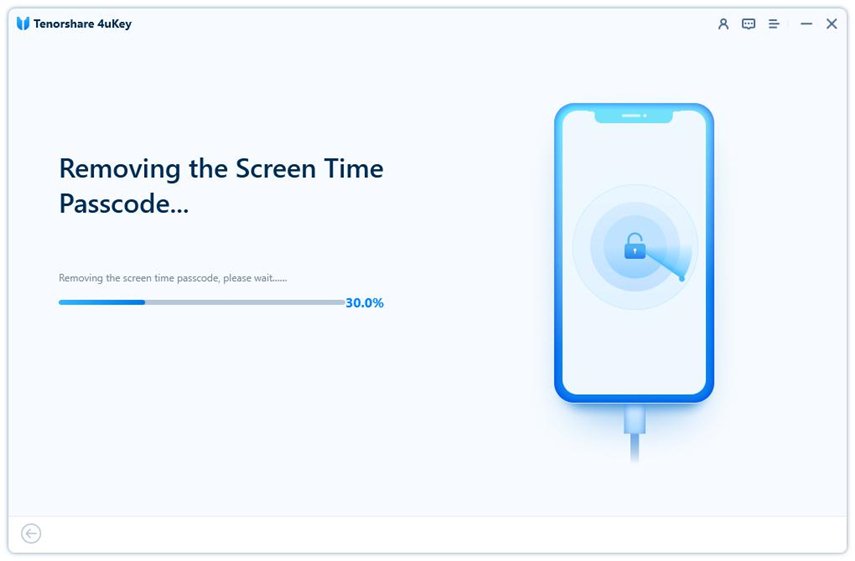
There are numerous third-party software applications (e.g., EaseUS MobiUnlock, LockEraser, AnyUnlock) that claim to remove or unlock Screen Time passcodes without data loss or Apple ID.
Things to Consider Before Using:
- Cost: These tools are rarely free. They often involve subscriptions (e.g., $30 USD/month) or one-time licenses ($50+ USD), which can be a significant investment for a single-use problem.
- Effectiveness: Their ability to bypass Apple's security measures is constantly challenged by iOS updates. A tool that worked on iOS 15 might be useless on iOS 17 or 18.
- Data Risk: Some tools may still require a factory reset, leading to data loss. Always read their documentation very carefully.
- Security & Privacy: Introducing third-party software to your device's security system carries inherent risks. Ensure the software is from a reputable vendor and be aware of what permissions it requests.
- Process: Typically, you install the software on your computer, connect your iPhone/iPad, and follow the on-screen prompts.
Our Recommendation: Exhaust all official Apple-supported methods (especially the Apple ID recovery) before considering third-party solutions. Their efficacy is often dubious, and the risks can be high.
Empowering Parents & Guardians: Strengthening Screen Time Restrictions
Understanding how to change or reset a Screen Time passcode is just one piece of the puzzle. For parents and guardians, the real power lies in proactively setting up robust restrictions that anticipate and mitigate attempts to bypass them. Here's how to lock down your settings effectively:
- Prevent Account Changes:
- Go to Settings > Screen Time > Content & Privacy Restrictions > Account Changes.
- Set this to Don't Allow. This prevents anyone from signing out of Apple ID, iCloud, or making changes to accounts, which can be a gateway to bypassing restrictions.
- Restrict Passcode Changes:
- Within Content & Privacy Restrictions, also look for Passcode Changes and set it to Don't Allow. This ensures your device passcode (and by extension, potentially the Screen Time passcode) cannot be altered without permission.
- Block App Installation & Deletion:
- Go to Content & Privacy Restrictions > iTunes & App Store Purchases (or App Store & Purchases on Mac).
- Set Installing Apps and Deleting Apps to Don't Allow. This prevents users from removing restricted apps to circumvent limits or downloading new, unrestricted ones. Also set "In-app Purchases" to "Don't Allow" to avoid unexpected charges.
- Control Date & Time Changes:
- Go to Content & Privacy Restrictions > Location Services > System Services. Ensure "Setting Time Zone" is off.
- Additionally, under Content & Privacy Restrictions > Account Changes, ensure "Date & Time" is restricted. This prevents manipulating time-based limits.
- Utilize Content Restrictions:
- Within Content & Privacy Restrictions > Content Restrictions, set specific limits for web content (e.g., "Limit Adult Websites" or "Allowed Websites Only"). This helps prevent access to inappropriate content even if a browser is accessed via a workaround.
- Also, restrict Movies, TV Shows, Apps, and Books by age ratings.
- Limit Access to Siri & Search:
- In Content & Privacy Restrictions > Allowed Apps, you can toggle off apps like Siri & Dictation if they are being used to bypass other restrictions.
- Under Content & Privacy Restrictions > Content Restrictions > Web Content, ensure "Block Inappropriate Content" is enabled for search engines.
- Review Allowed Apps:
- Regularly check which apps are not subject to limits. Sometimes a seemingly innocuous app might have a built-in browser or messaging function that can be exploited.
- Communicate Openly:
- While technical restrictions are important, don't underestimate the power of open communication with your children about the "why" behind Screen Time. Understanding the benefits of balanced device usage can foster self-regulation and reduce the desire to bypass limits.
By combining the knowledge of how to change your Screen Time passcode with these proactive security measures, you can create a more secure and effective digital environment for yourself and your family.
Frequently Asked Questions About Screen Time Passcodes
Got more questions? We've got answers to some common queries about Screen Time passcodes.
Can I change my Screen Time passcode without my Apple ID?
Yes, if you know your current Screen Time passcode, you can change it without needing your Apple ID. Your Apple ID is only required if you forget your current passcode and need to reset it.
What's the difference between my device passcode and my Screen Time passcode?
Your device passcode unlocks your iPhone, iPad, or Mac. It grants access to the entire device. Your Screen Time passcode is a separate, usually 4-digit, code that specifically locks the Screen Time settings. You need it to change app limits, content restrictions, or downtime schedules.
Will changing my Screen Time passcode delete my data or settings?
No. Changing your Screen Time passcode simply updates the security code that protects your Screen Time preferences. It will not delete any data, apps, photos, or other settings on your device. All your existing Screen Time limits and restrictions will remain active under the new passcode.
How often should I change my Screen Time passcode?
There's no strict rule, but changing it every few months, or whenever you feel its security might be compromised (e.g., if you accidentally shared it or think someone might have guessed it), is a good practice. For parental controls, changing it periodically can help maintain effectiveness as children get older.
Can I use Face ID or Touch ID instead of a numeric Screen Time passcode?
Unfortunately, no. Apple's Screen Time currently requires a 4-digit numeric passcode. While Face ID or Touch ID are used for many other security features on your device, they are not an option for the Screen Time passcode itself. You might be prompted to use Face ID/Touch ID as a family organizer to authorize the change, but the passcode itself remains numeric.
What if I can't remember the Apple ID used to set up Screen Time?
This is a tough spot. If you are the original person who set up Screen Time and you can't remember the Apple ID, you might need to try recovering your Apple ID first via Apple's iForgot service (iforgot.apple.com). If it was set up by someone else and you don't have access to their Apple ID, you'll need to contact that person. As a last resort, a factory reset will remove the passcode but will also erase all data.
Taking Control of Your Digital Habits
Changing your Screen Time passcode is more than just a technical adjustment; it's an act of taking control. Whether you're fine-tuning your own digital habits or safeguarding your family's, the ability to update your passcode easily when you know it (and reset it when you don't) ensures that Screen Time remains a flexible and effective tool.
By understanding these steps, you're empowered to manage your device usage thoughtfully, adapt to changing needs, and build a healthier relationship with your technology. So go ahead, update that passcode, and continue to curate your digital world with confidence and intention.