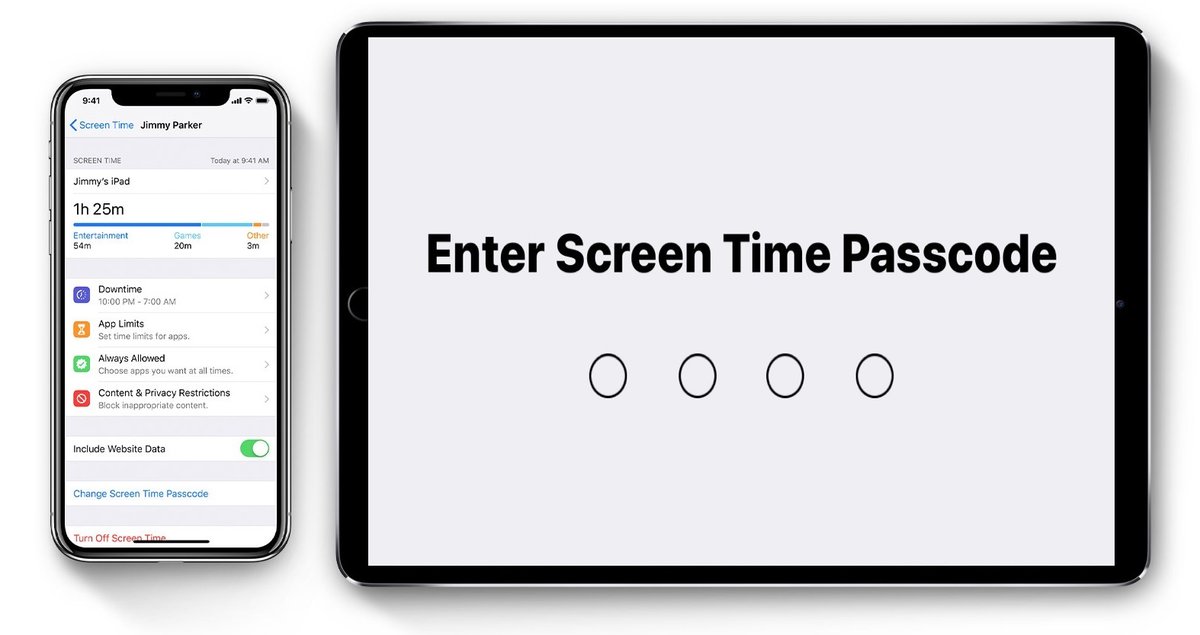
Screen Time is a powerful feature across your Apple devices—iPhone, iPad, and Mac—designed to help you manage your digital well-being and set healthy boundaries for yourself and your family. Whether you're trying to cut down on app usage, restrict content for a child, or simply maintain focus, a Screen Time passcode is your key to unlocking these controls. But what happens when you need to update that passcode, or worse, when you've forgotten it entirely?
This comprehensive guide will walk you through every scenario, from simply updating your existing passcode to navigating complex resets and even exploring workarounds. Our goal is to empower you with the knowledge to always stay in control of your device usage. Let's dive in and ensure your Screen Time settings work for you. If you're just getting started, you'll first need to set up Screen Time passcode to gain these powerful controls.
Understanding Your Screen Time Passcode
Before we get into the "how-to," it's crucial to understand what your Screen Time passcode is and why it's distinct. This passcode is separate from your device's primary passcode (the one you use to unlock your iPhone or iPad). Its sole purpose is to protect your Screen Time settings, ensuring that app limits, content restrictions, and privacy settings can't be changed without authorization.
Your Apple ID and password play a pivotal role here, especially if you ever need to reset a forgotten passcode. It's the ultimate safeguard, tying your Screen Time controls directly to your personal Apple account. Keeping your Apple ID secure and updated is non-negotiable for smooth Screen Time management.
Changing Your Screen Time Passcode When You Know It
Perhaps you've realized your current passcode isn't secure enough, or maybe you just want to refresh it. If you know your existing Screen Time passcode, updating it is a straightforward process on any of your Apple devices. This is the simplest way to maintain your security and ensure only authorized individuals can modify your usage limits.
Here’s how to do it for your personal device or as a family organizer managing a child’s device:
For Your Own iPad or iPhone
- Open the Settings app, which looks like a gray gear icon.
- Scroll down and tap Screen Time.
- Tap Change Screen Time Passcode.
- Tap Change Screen Time Passcode again.
- You'll be prompted to enter your current Screen Time passcode.
- Now, enter your desired new Screen Time passcode twice to confirm it.
For Your Own Mac
- Click the Apple menu in the top-left corner of your screen, then select System Settings (or System Preferences on older macOS versions).
- Click Screen Time in the sidebar.
- Next to "Lock Screen Time Settings," click Change Passcode….
- Enter your current Screen Time passcode.
- Enter your new Screen Time passcode twice for confirmation.
Changing a Child's Screen Time Passcode as a Family Organizer
If you're the family organizer, you have the power to adjust Screen Time settings for any child in your Family Sharing group directly from your own device. This is incredibly helpful for maintaining boundaries and ensuring appropriate device usage. For a more detailed walkthrough, discover How to Change Your Screen Time passcode without a hitch.
On Your iPad or iPhone:
- Open the Settings app on your device.
- Tap Screen Time.
- Under the "Family" section, tap on your child's name.
- Tap Change Screen Time Passcode.
- Tap Change Screen Time Passcode again. You might be asked to authenticate with Face ID, Touch ID, or your device passcode.
- Enter your child’s current Screen Time passcode.
- Enter the new Screen Time passcode twice to confirm.
On Your Mac:
- Click the Apple menu > System Settings (or System Preferences).
- Click Screen Time in the sidebar.
- From the "Family Member" popup menu, select your child’s name.
- Next to "Lock Screen Time Settings," click Change Passcode….
- Enter your child’s current Screen Time passcode.
- Enter the new Screen Time passcode twice for confirmation.
What to Do If You Forgot Your Screen Time Passcode
Forgetting a passcode can be frustrating, especially when it locks you out of managing your digital boundaries. Fortunately, Apple has a built-in recovery mechanism that leverages your Apple ID. This process is secure and designed to help you regain control swiftly. If you ever find yourself in this situation, this is the path to recovery. To learn more about this specific process, follow our guide on Forgot your Screen Time passcode and how to reset it.
Resetting Your Own Forgotten Passcode
- Follow steps 1-4 from the "Changing Your Own Screen Time Passcode" section above.
- When prompted to enter your current Screen Time passcode, tap Forgot Passcode?.
- Enter the Apple ID and password that was originally used to set up Screen Time. This is crucial for verification.
- Enter a new Screen Time passcode twice to confirm.
Resetting a Child’s Forgotten Passcode (as Family Organizer)
- Follow steps 1-5 from the "Changing a Child's Screen Time Passcode" section above.
- When prompted, select Forgot Passcode?.
- Log in with your Apple ID (the one you used to set up Family Sharing and Screen Time).
- Enter a new Screen Time passcode twice to confirm it.
Taking a Break: Turning Off Your Screen Time Passcode
Sometimes you might need to temporarily disable Screen Time, or perhaps you've decided you no longer require its restrictions. Whatever the reason, turning off the Screen Time passcode (and by extension, Screen Time itself) is an option. Just remember that doing so will remove all limits and restrictions you've set, so proceed with purpose. For a complete guide on this, explore How to Turn Off or Disable Your Screen Time Passcode.
To Turn Off for Your Own Device:
- Open Settings > Screen Time.
- Tap Change Screen Time Passcode.
- Tap Turn Off Screen Time Passcode.
- Enter your current Screen Time passcode to confirm the action.
To Turn Off for a Child’s Device (as Family Organizer):
- Open Settings > Screen Time.
- Select your child’s name under "Family."
- Tap Change Screen Time Passcode.
- Tap Turn Off Screen Time Passcode.
- Enter your current Screen Time passcode (or authenticate with Face ID/Touch ID/device passcode) to confirm.
Advanced Strategies: Bypassing and Resetting Screen Time
While Screen Time is designed to be robust, some users seek methods to bypass or fully reset it, especially when a passcode is forgotten and the Apple ID recovery isn't straightforward. It's important to note that many "hacks" may not work on newer iOS versions due to continuous security patches (e.g., iOS 26 and beyond often close these loopholes). Always consider the implications, including potential data loss, before attempting these methods.
Hacks and Workarounds (Use with Caution)
These methods typically exploit system behaviors that Apple later addresses. Their effectiveness can vary greatly depending on your iOS version.
- Send Text Messages: If Siri is enabled, say "Hey Siri, text [friend’s name]." You can also access Messages through the Contacts app by tapping a contact, then "message." Sharing a photo/screenshot and selecting "Messages" also works.
- FaceTime Screen Sharing: During a FaceTime call, tap the screen, select ••• > "Screen Sharing" > "Share My Screen." If your friend opens an unblocked app briefly, it can sometimes grant temporary access.
- "Add Account" for Browser Access: Uninstall the Google app. Navigate to Settings > Apps > Mail > Mail Accounts > Add Account > choose Google. When prompted, tap "Open Browser," scroll to "Privacy," then tap the "Google link" to open a browser.
- Change Date and Time: Go to Settings > General > Date & Time, and toggle off "Set Automatically." You can then manually adjust the date and time, which can sometimes bypass app limits (requires Location Services to be unrestricted).
- Access Safari via Links: Clicking any link within an unblocked app like Gmail or Facebook Messenger might open it in Safari, giving you temporary web access.
- Uninstall and Reinstall Restricted Apps: If app deletion is unrestricted, you can delete a restricted app (press and hold Home Screen, tap '-', "Delete App") and then reinstall it from the App Store. The app will usually launch without restrictions until Screen Time re-applies the limit.
Using Third-Party Apps (Paid Software)
Several third-party applications claim to remove Screen Time passcodes, often requiring a connection to a computer. Tools like EaseUS MobiUnlock, LockEraser, or AnyUnlock are examples of such software.
- Process: Install the chosen app on your computer, connect your iPhone, and follow the specific instructions provided by the software.
- Cost: These applications typically come with a cost, ranging from around $30 USD for subscriptions to $50 USD or more for a one-time license.
- Caution: Always verify if the app will erase all data on your iPhone during the process, as some solutions do. Back up your device before proceeding.
Factory Reset iPhone (Last Resort)
This is the most extreme method and will erase all data on your device, including photos, apps, and settings. Only consider this if all other methods have failed and you have a recent backup, or you're willing to start fresh.
- Power off your device.
- Put the device into Recovery Mode using specific button combinations (these vary by iPhone model; check Apple's support pages for your exact device).
- Connect your iPhone to a computer (using Finder on a Mac or iTunes on a PC).
- When prompted on your computer, select Restore. This will wipe your device clean and reinstall the latest iOS, removing the Screen Time passcode.
Best Practices for Screen Time Management
Managing your Screen Time effectively goes beyond just changing or resetting passcodes. It's about proactive choices that enhance your digital security and well-being. By adopting these actionable insights, you can minimize the chances of needing emergency resets and maximize the benefits of Screen Time.
- Choose Wisely: Select a Screen Time passcode that is easy for you to remember but difficult for others to guess. Avoid obvious sequences like "1111" or birthdays.
- Regular Updates: Consider regularly changing your Screen Time passcode, just like you would with other important passwords, to enhance overall device security.
- Apple ID is Key: Keep your Apple ID details, including your password and security questions, current and secure. This is your lifeline for passcode recovery. If you forget your Apple ID, visit the Apple ID website to recover it using your associated email or security questions.
- Disable if Needed: If you find Screen Time more restrictive than helpful, you can completely disable it by navigating to Settings > Screen Time > Turn Off Screen Time.
- Parental Fortification: For parents or guardians, strengthen Screen Time restrictions to prevent many of the bypass methods. Limit the ability to change Location Services settings, block websites, or restrict app deletion/installation to keep your child's settings truly secure. If you encounter any unexpected behavior or can't seem to get the passcode to stick, you might need to troubleshoot screen time passcode issues.
Staying on top of your Screen Time passcode is an integral part of managing your digital life effectively. By understanding how to change, reset, and even strategically manage it, you empower yourself to create healthier digital habits. Regularly reviewing your settings and being proactive about security will ensure that Screen Time remains a helpful tool, not a frustrating barrier, on your journey toward digital wellness.